Veo, Kling and Seedance 2.5: Video Prompt Guide
Write usable prompts for popular AI video workflows while checking each product’s current input and duration controls.
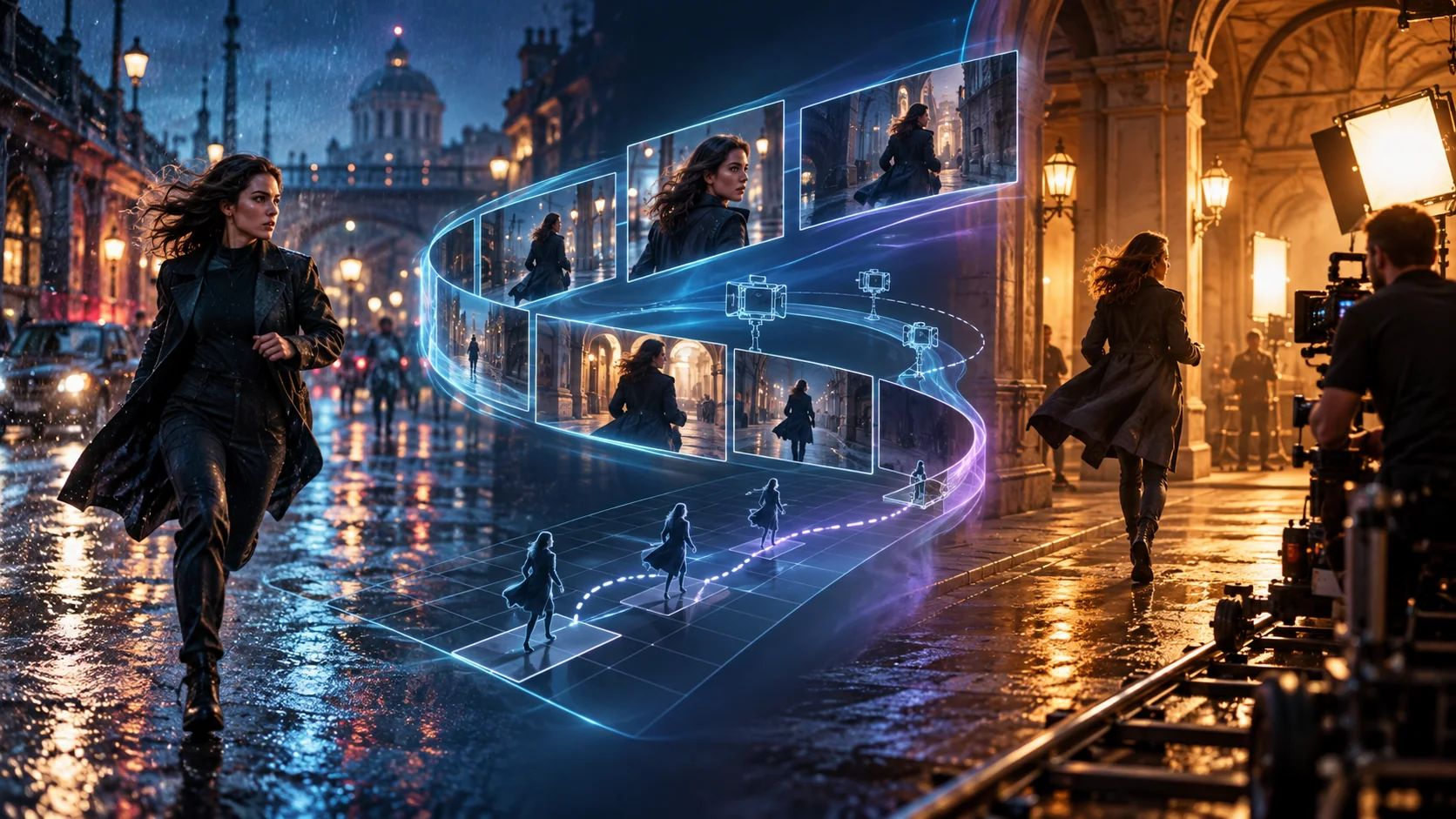
Start with the video task
Choose text-to-video for a new scene and image-to-video for animating a supplied frame. Some products support more references or editing modes. Name your subject, a short action and the camera movement before adding style. A prompt can suggest motion; the product settings determine supported length and output shape.
Veo: organize motion and sound
Google documents Veo video generation with text and image input modes in its API. Describe the subject, action, scene and camera path. If your chosen version and interface support audio, specify it distinctly: ambient rain, a spoken line, or silence. Check current duration and format controls in the product you actually use.
Kling: animate the starting scene
Kling offers AI video and image creation. For an image-to-video task, explicitly anchor motion to the uploaded picture: “Keep the person and outfit; she turns toward the window while the camera slowly moves in.” Check Kling’s current release notes and selected mode for available controls rather than assuming every version supports the same reference, audio or duration options.
Seedance 2.5: plan a coherent sequence
ByteDance presents Seedance 2.5 as an audio-video model for longer storytelling, references and targeted editing. For a sequence, describe the main subject and action in ordered beats, then state which visual features carry through the transition. Use provided references according to the actual interface. A detailed prompt does not guarantee every requested cut or transition.
Keep a shot achievable
A 6–10 second shot usually works better with one primary action and one camera move than with five locations, three character entrances and a rapid montage. For longer supported clips, make the transitions explicit. Review movement, character consistency and sound separately, then simplify the part that failed.
Compare by workflow, not hype
Model releases change quickly. Note the model version and the date of your test when comparing outputs, and separate developer claims from what you personally observed. This page is a prompt-writing guide, not a ranking of video quality or a promise that Promptlyfied runs those video models.
A video-model prompt
Make this picture into a whole movie.
Use the uploaded image as the first frame. Keep the red coat and platform layout. The train begins to move as the subject turns toward it; one slow side-tracking shot.
A short, continuous action is easier to direct and evaluate than an undefined full film.
Text-to-video: “At dusk, a woman crosses a rain-wet station platform as a train departs. Side-tracking camera, one continuous shot, warm carriage lights reflecting in the pavement.”
Image-to-video: “Start from the uploaded image. Preserve the woman’s clothing and position. The train begins to move; her hair shifts in the wind as the camera makes a gentle side track.”